Studio
Connecting Synkeet to your sound system
Watch it
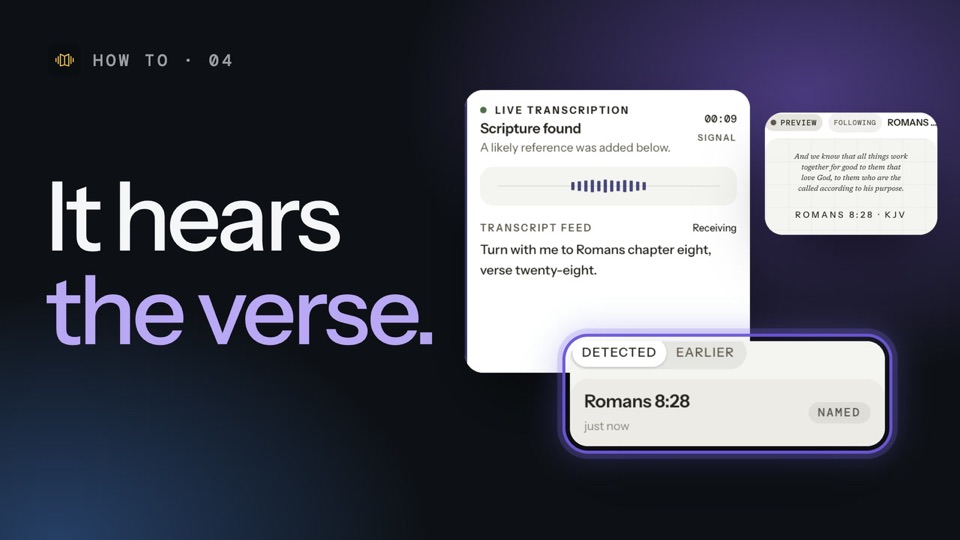
Synkeet listens for scripture in what is said, so what it hears matters more than anything else in the booth. Choose the source in Booth settings, Audio, Input device.
The one rule
Send Synkeet a clean speech mix on input 1 (or inputs 1 and 2) of whatever device you connect.
- What goes in: the pastor's microphone and the readers' microphones, post-fader. No band, no playback, no room microphones.
- How loud: speech should peak around -12 dBFS on the desk's meter for that send. A feed that is too quiet misses references, and one that clips garbles them.
Inputs 3 and up cannot be reached on any computer, so the speech mix always goes on input 1, or on 1 and 2 together.
Find your setup
Every setup that works
| Setup | Mac | Windows | How |
|---|---|---|---|
| Speech aux into a 2-input USB audio interface | Yes | Yes | An analog mixer |
| Digital mixer over USB (Behringer, Midas, Allen & Heath, Yamaha TF, Soundcraft) | Yes | Yes, with the maker's driver | A digital mixer over USB |
| Dante AVIO USB adapter | Yes | Yes | Dante |
| Dante Virtual Soundcard | Yes | Yes, in WDM mode | Dante |
| Yamaha QL / CL | Yes, through Dante | Yes, through Dante | Dante |
| AES67 or Ravenna, through a stereo device | Yes | Yes | The same as Dante Virtual Soundcard |
| A wireless microphone receiver into an interface | Yes | Yes | A wireless microphone |
| A USB microphone on the pulpit | Yes | Yes | No sound desk |
| The laptop's own microphone | Yes, as a fallback | Yes, as a fallback | No sound desk |
| Loopback or BlackHole, from another app on the same Mac | Yes, with Sound desk feed on | Not available | Sharing a computer with the livestream |
| A virtual audio cable, from another app on the same PC | Not available | Yes | Sharing a computer with the livestream |
| Mac aggregate device | Yes, with Sound desk feed on | Not available | Sound desk feed |
| Bluetooth headset or AirPods | For testing only | For testing only | A wireless microphone |
Not yet: speech on input 3 or higher, and a Windows device that offers only ASIO. See What does not work yet below.
Sound desk feed
Under Input device is a Sound desk feed switch.
On, Studio turns off the echo cancellation, noise suppression and automatic gain meant for a laptop microphone. The mix then arrives exactly as the desk sent it, both channels included.
It is on by itself for an interface, a mixer over USB, Dante or a loopback device, and off for a built-in, Bluetooth or iPhone microphone. Flip it if Studio guessed wrong. It is saved for that device by name, and takes effect the next time listening starts.
With the switch off, a Mac hears only input 1 of the device.
Speech channel
With the switch on, Speech channel picks which side of the input carries the speech:
| Choice | What it does |
|---|---|
| Both | Mixes inputs 1 and 2 into one. |
| Left (1) | Takes only input 1. |
| Right (2) | Takes only input 2. |
Use Left or Right when the other input carries something else, or nothing at all. Mixing in an empty input halves the level.
Good to know.
- On an interface with four inputs, Both mixes all four. Put the speech on inputs 1-2 and keep 3-4 quiet (a feed on input 1 alone arrives 12 dB down).
- On an interface with one input, Right (2) records silence. Leave a one-input interface on Both or Left (1).
Warnings
While listening, the transcription panel warns in these cases:
- Nothing has reached Synkeet for 15 seconds (a minute for a laptop or Bluetooth microphone).
- The feed is very quiet.
- The feed is clipping.
It measures what is actually sent for transcription, after the channel pick and the input gain.
Dante
- The simplest route is a Dante AVIO USB adapter. It has 2 inputs and plugs into the booth computer like a USB microphone, on Mac and Windows. In Dante Controller, route the speech mix to its receive channels, then choose the adapter as the Input device.
- Start the Virtual Soundcard before you start capture, and leave it running. Stopping it removes the input mid-service.
Dante Virtual Soundcard on a Mac
Route the speech mix to receive channel 1 (or 1 and 2), and choose Dante Virtual Soundcard as the input.
Dante Virtual Soundcard on Windows
- Set its audio interface to WDM while it is stopped. In ASIO mode Windows does not see it at all.
- Route the speech mix to channels 1-2.
- Choose the DVS Receive 1-2 pair as the input.
A digital mixer over USB
Most digital desks appear as a USB audio device with many channels. Synkeet uses only USB channels 1-2, so route the speech mix (usually a spare aux bus, post-fader) there.
| Mixer | Where the speech mix goes | Notes |
|---|---|---|
| Behringer X32 / Midas M32 | Routing, Card Out: put the speech aux on USB 1-2 | Windows needs the X-USB driver |
| Behringer Wing | Set USB audio to 2x2 if the computer is only for Synkeet, and route the speech bus to USB 1-2 | Windows needs the WING-USB driver |
| Allen & Heath SQ | USB 1-2 carry Main LR by default; patch the speech mix there instead | On Windows (WDM) only USB 1-2 are used anyway |
| Allen & Heath Qu | In the USB patch, set tracks 1-2 to the speech mix, post-fader | By default the LR mix is on tracks 17-18, which Synkeet cannot reach |
| Allen & Heath CQ | Route the speech mix to USB 1-2 | Windows needs the A&H driver |
| Yamaha TF | USB 1-2 are the direct outs of desk channels 1 and 2 | Works only if the pastor's microphone is on desk channel 1; otherwise send an aux to an interface |
| Yamaha QL / CL | No USB audio; use Dante | See Dante above |
| Soundcraft Ui24R | USB 1-2 are the master left and right, and cannot be changed | You get the whole mix with the music; an aux into an interface is better |
An analog mixer
Send a spare aux (post-fader, speech microphones only) into input 1 of a USB audio interface, and choose the interface as the Input device. Set the interface's gain so speech peaks around -12 dBFS. Do not plug a line-level aux into a microphone-level input on the computer.
A wireless microphone
Take the receiver's output into input 1 of an audio interface, or into the mixer and on to Synkeet with the rest of the speech mix. Bluetooth headsets and AirPods work, but they send low-quality audio and miss more references; use them only to test.
No sound desk
A small room with no desk can still use Synkeet.
- A USB microphone on the pulpit is the better choice. Plug it into the booth computer and choose it as the Input device. Put it close to the speaker, where it hears speech more than the room.
- The laptop's own microphone works when the computer is close to whoever is speaking and the room is quiet. From the back of a hall it hears the room and the speakers, and misses more references. It is also the fallback when a feed fails mid-service.
Sharing a computer with the livestream
The best feed for Synkeet is its own speech aux from the desk. A stream mix carries the band too, and music makes detection worse.
When Studio runs on the same computer as the streaming software and the speech already reaches that computer, it can be routed across.
- On a Mac, use Loopback or BlackHole. Send the speech to it, choose it as the Input device, and turn Sound desk feed on. With the switch off, voice processing cancels a loopback feed to silence.
- On Windows, use a virtual audio cable that shows up in Windows' sound settings as a recording device, and choose it as the Input device.
What does not work yet
- Speech on input 3 or higher. No computer reaches past inputs 1 and 2 today. Patch the speech mix to inputs 1-2 instead.
- A Windows device that offers only ASIO. Studio sees Windows sound devices (WDM) only. Most interfaces offer both, so choose the WDM one; Dante Virtual Soundcard needs WDM mode.
- The Offline engine with a chosen input. Offline listens to the computer's system default input (see below).
If the feed fails
The input disappears
When the input disappears mid-service (a cable pulled, the Virtual Soundcard stopped), Studio stops listening straight away and names it: "Lost 'Scarlett 2i2'. Plug it back in or choose another input, then start listening again."
It does not start again by itself when the input comes back. Press Start capture once it is back.
The input is not there at start
If the chosen input is not there when you start (unplugged, or its driver reinstalled), Studio says "Can't find" with its name and opens nothing else.
An input that comes back under a new system id is found again by its name, as long as no other connected input has the same name. With two of the same model connected, Studio says "Can't find" rather than guess which one you meant.
The signal stops but the input is connected
When the chosen input's signal stops but the input is still connected (a driver reset, another app taking it), Studio quietly reopens it once, about two seconds later. On "System default", it follows whatever your computer's default input has become.
If it happens mid-service
- Choose the laptop's built-in microphone under Input device, and Start capture again.
- Keep projecting by hand from search, the Bible navigator or your cues meanwhile.
Synkeet never switches to another input by itself.
Offline engine and loopback
The Offline transcription engine listens to the computer's system default input, not the one chosen here, and Settings says which input that is. To use Offline with a sound desk feed, make the feed the default input in the operating system's sound settings first.
Mac aggregate devices and loopback tools (Loopback, BlackHole) work as inputs with Sound desk feed on. With it off, voice processing cancels a loopback feed to silence and ends an aggregate device within a second.
Before every service
- Check that the right Input device is chosen (and that the Virtual Soundcard is running, if you use one).
- Check that Sound desk feed is on for a feed from the desk, and off for a laptop microphone.
- Speak a sentence into the pastor's microphone and watch the level move. Speech should peak around -12 dBFS at the desk, with no clipping.
- Say a reference out loud ("John three sixteen") and check that it appears in the booth.
- Leave the speech mix's fader where it was during the test.