Studio
Projecting a verse by hand
Watch it
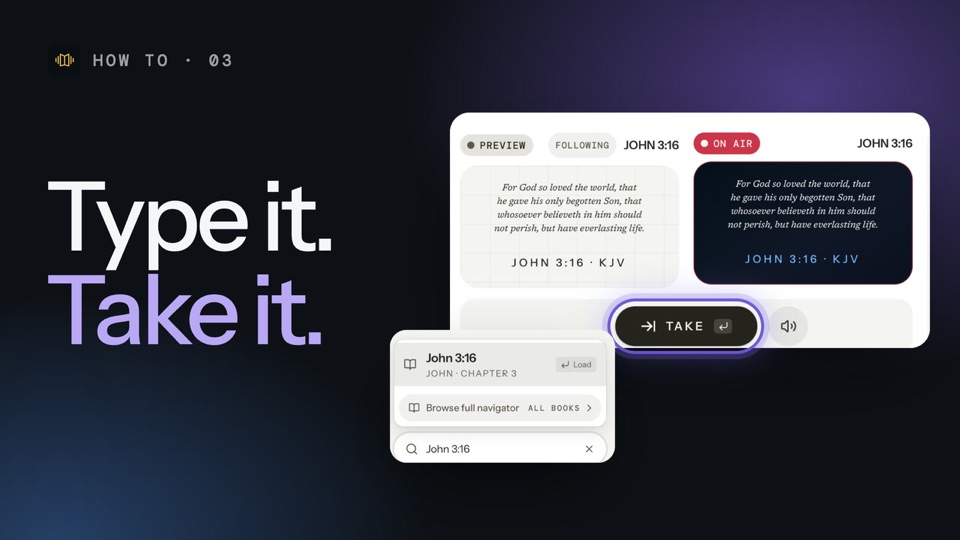
Detection is a convenience. Every verse can be put up by hand, on every plan, whether or not the microphone is open. This guide is for the operator who types references, browses the Bible or searches by the words.
Three ways in
Everything lands in Preview first. Press TAKE (or Enter) to send it to air. Double-clicking a detected card, a cue or a verse in the chapter list skips Preview and goes straight to air.
The search field
It sits in the Listen tab, above the Detected list.
- Type a reference (John 3:16, Romans 8, Psalm 23, or a short form like jn316).
- Tab accepts the suggestion shown faintly after what you typed.
- Enter loads the reference into Preview when one fits.
- When several fit, the list shows them all and Enter does nothing until you arrow to one.
The Bible navigator
Press / anywhere in the booth. You can also use Browse full navigator, the button at the foot of the search field's list, or the same entry in the command palette. The chapter's name above the chapter list opens it at that chapter (see the booth guide).
- Type a reference, or choose Old or New Testament, then a book, chapter and verse.
- Press Load into Preview, or double-click a verse.
- Shift-click a run of verses to stage a range.
When what you typed matches no book or reference, a row under the field offers Search the web for these words. It opens a Google search for them, with "bible" added, in your web browser (in web Studio, a new tab).
Good to know.
- The search never opens inside Studio.
- The words go to Google and not to Synkeet, and nothing from that page comes back into Studio.
The command palette
Press Cmd+K (Ctrl+K on Windows), then type.
- A reference typed here (John 3:16, Ps 23, 1co13) is offered first, and Enter loads it into Preview.
- With a verse already in Preview, the first row projects it at once (Project now).
Short forms
Every scripture field in Studio reads references the way people shorten them, and all of them read the same way. That covers the Listen search, the Bible navigator, the command palette, the Setlist's add field and a service plan's. The same rule runs the search fields in Taper.
Book abbreviations
The standard short forms and the common ones:
Gn or Gen, Ex, Lv, Nm, Dt, Jos, Jdg, Ps or Psa, Pr or Prov, Eccl, Song or SoS, Is or Isa, Jer, Ezk or Ezek, Dn, Hos, Jl, Am, Ob, Jon, Mi, Na, Hab, Zep, Hag, Zec, Mal, Mt or Matt, Mk, Lk, Jn or Jhn, Ac, Ro or Rom, 1 Co or 1 Cor, Ga or Gal, Eph, Php or Phil, Col, 1 Th, 1 Ti or 1 Tim, Ti or Tit, Phm, Heb, Jas, 1 Pe or 1 Pet, 1 Jn, Jud or Jude, Rev.
A numbered book takes its number as 1, I or First, with or without a space (1co13, I Cor 13, first cor 13). Capitals and dots do not matter.
Compact references
| You type | Studio reads |
|---|---|
| jn 3 16, jn3:16, jn3.16 | John 3:16 |
| mt5:3-12, mt 5 3 12, mt 5 3-12 | Matthew 5:3-12 |
| John 3,16 | John 3:16 (a comma works too) |
| john three sixteen | John 3:16 |
| psalm ninety first | Psalm 91 |
Numbers spelled out work, ordinals too.
Numbers run together with the book
A number run together with the book is a chapter when the book has that chapter. So ps23 is Psalm 23 and ac18 is Acts 18. A verse in those chapters needs a separator (ac1:8 or ac 1 8).
A longer run that is no chapter is split every real way.
| You type | Studio reads |
|---|---|
| jn316 | John 3:16, because John has no chapter 316 |
| ps1191 | Psalm 119:1, because Psalm 11 has no verse 91 |
| jn112 | Offers John 1:12 and John 11:2 |
| ps231 | Psalm 23:1 straight away, because Psalms never asks |
Good to know.
- A short run that could have been a chapter the book does not have is asked about, never taken. jn22 lists John 2:2 under "John has 21 chapters." and Enter takes nothing, since 22 may be a mistyped chapter. The same goes for jn31, gn51 or heb41.
- If John 2:2 is what you meant, click it, or press Down and Enter. Or type the chapter again.
- With a space, jn 22 is a chapter and nothing else, and is refused.
- When spelled-out words could be read more than one way, every real reading is offered. Psalm twenty three is Psalm 23 or Psalm 20:3.
- Twenty nine is always 29 first, so acts twenty nine is refused as acts 29 is, never read as Acts 20:9.
- A list of verses (John 3:16, 18) or a range across chapters (Psalm 23-24) is not read yet. The field says it could not read it rather than guess part of it.
What you see before Enter
The grey text after what you typed shows the whole reading, so "jn316" shows "John 3:16" before you press anything.
Several readings, never a guess
When the letters start several books and the reference is real in more than one, the field lists them all and Enter picks none of them. jo 1 1 is John, Job, Joshua, Joel and Jonah 1:1.
- Click the one you mean.
- Or press Down to reach them from the field, Left and Right to move along them, and Enter to pick the one lit.
A short form that is also the start of another book lists both when both are real.
| You type | Studio offers |
|---|---|
| jud 3 | Judges 3 and Jude 1:3 |
| ti 2 3 | Titus 2:3 and both Timothys |
| co 3 2 | Colossians 3:2 and both Corinthians |
| phil 4 13 | Philippians alone, because Philemon has no chapter 4 |
Good to know.
- A short form is never read in another book alone. ti 6 12 is refused, because Titus has no chapter 6, rather than taken as 1 Timothy 6:12. phil 5 is refused rather than read as Philemon 1:5.
- Letters that begin two books with one number that fits only a one-chapter book (phi 5) ask which book you mean.
- A chapter or verse the book does not have is refused and the field says so: "John has no 3:99."
Searching by the words
When you remember the line but not the reference, type the words instead: "the lord is my shepherd", "gives strength", "faith mustard seed mountain".
The search field, the Bible navigator's search, the Setlist's field and a service plan's all do this. They search the words when what you typed is no reference and no book on its way. Anything with a number in it is read as a reference, as above.
What you see
The verses that say those words appear under the field a moment after you stop typing, in three groups, always in this order.
| Group | What it holds |
|---|---|
| Exact | The phrase as typed. |
| All words | Every word, in any order. |
| Close | A word's other forms, or a near spelling. |
Each row shows the reference, the translation it was found in and the verse itself, with the words that matched marked. You can see why it was offered before it reaches Preview. The tier labels stay at the top of the list as it scrolls.
Old English is read as what it means: "gives" finds "giveth", "you" finds "thee" and "thou", "has" finds "hath".
Choosing a result
Click a row and it does what a typed reference does.
| Where | What a click does |
|---|---|
| Search field | Stages it to Preview. |
| Bible navigator | Opens it. |
| Setlist or service plan | Adds it. |
Enter takes the result when only one verse says those exact words. That row is lit as it arrives. The search field and the navigator put it in Preview, and the Setlist or plan adds it.
When several verses say the exact words ("fear not"), or the best is only All words or Close (even as the only row), nothing is lit and Enter does nothing. The order is a ranking, and a near match is not what was said. Press Down to reach the rows and Enter to take the one lit, or click one.
Good to know.
- Switching the translation shows a new list with nothing arrowed to.
- In the navigator, Search the web appears only when nothing was found, not even a verse that says the words.
Which Bibles are searched
The words are searched in the public-domain bibles Synkeet bundles (KJV, WEB, ASV and BSB). That is the church's translation when it is one of those, and the KJV otherwise.
A licensed translation such as the NLT is never searched, but a verse you choose still shows in it.
The search runs on Synkeet's servers, so it needs a connection. Offline, the section says so, and typing a reference works as always.
Stepping through a passage
Once a verse is in Preview, its chapter appears under the stage.
- Click any verse to preview it.
- Use Left and Right arrows (or PageUp and PageDown) to move.
- Press TAKE as the reader goes.
If a typed verse does not exist, Preview says "That verse is not in this chapter" and nothing is sent.
Having verses ready
Add what you will need to the setlist (B), or build a service plan in the Service tab before the service, and fire each one as it is read. Cues and plan passages load into Preview, never straight to air, so the screen only changes when you take.
Clearing the screen
Reset all to idle (the circular arrow in the Output header), Clear screens in the command palette, or a key you assign under Booth settings, Controls, returns every output to its idle state.
- The header button asks first while something is on air, since it sits beside Open all output windows.
- The palette and your key clear at once, unless another booth has a verse on air, when every clear asks.
- On an output card, Reset to idle clears that one screen.