Studio
Sermon prep and how detection uses it
Watch it
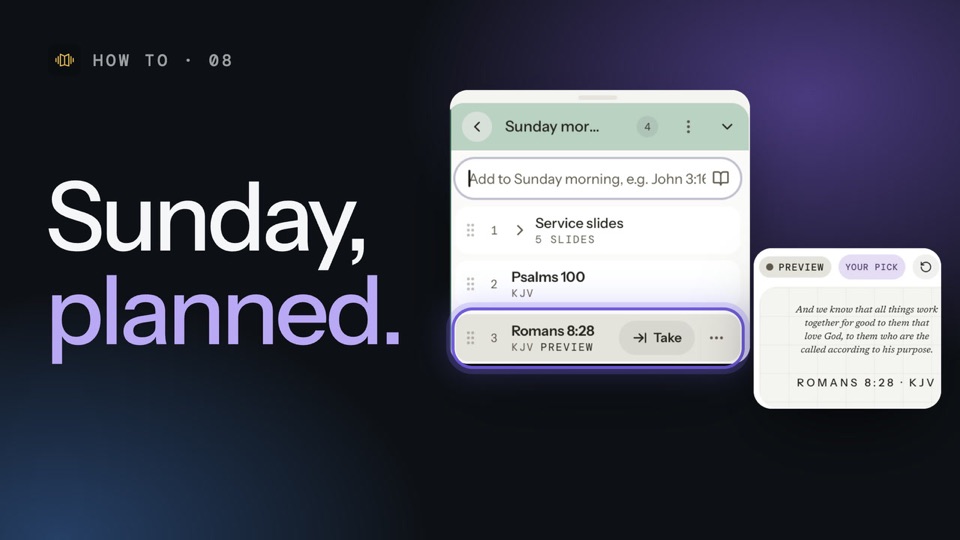
How to build a service plan before the service, and how the booth uses your prepared passages to hear verses more reliably. For operators and sermon-prep volunteers.
Building a service plan
Opening and creating plans
Open Service in the left rail. Its first pane, Service plans, lists your plans, each with its color at the left edge, its date and how many passages it holds.
Click a plan to open it, and that pane becomes the plan. Its heading takes the plan's color, and the color runs down the whole left edge of the pane.
- The ‹ button at the left (All plans) goes back. Escape works too.
- A long name is cut short in the heading. Point at it to read it whole.
- Press + in the heading for a new service plan. Name it, or it becomes "Untitled service".
Adding passages
There are three ways to add passages.
| Way | How |
|---|---|
| Type a reference | In the field at the top of the plan, which says Add to and the plan's name. |
| Pick in the navigator | Press the book at the right end of the field. |
| Import | Import from Planning Center (Growth and above). |
A passage is in a plan once. The same reference in the same translation is not added twice, however you add it. Adding one that is already there scrolls to its row and makes it flash.
Typing a reference
Type a reference such as John 3:16 or Ps 23 and press Enter.
- Type the start of a book and the rest shows faintly after it ("joh" shows John). Press Tab to take it, then type the chapter and verse.
- Short forms work too: "jn" shows John, and "jn316" shows John 3:16 after what you typed, so you see the verse before Enter (see Short forms in the manual projection guide).
- As you type, the line under the field shows what Enter will add ("john 3 16" becomes John 3:16).
- When several passages fit ("jo 1 1" is John, Job, Joshua, Joel and Jonah 1:1), they are listed under the field and Enter adds none of them. Click the one you mean.
- The field clears and keeps the focus, so ten verses are ten Enters.
- A line the booth cannot read is refused, and said so under the field, so a plan never holds something it cannot project.
Every verse field in Studio completes the book the same way: this one, the Setlist's, the Listen tab's search and the Bible navigator's.
Picking in the navigator
Press the book at the right end of the field to pick in the Bible navigator.
- It stays open while you add. Each verse already in the plan has a check, and the foot counts what you added.
- Done, Escape or a click outside closes it.
- Pick several adds several at once (Add 3 passages to plan).
Importing from Planning Center
Import from Planning Center (Growth and above, once connected under Booth settings, Service plans) pulls the scripture items from the nearest upcoming plan into a new plan.
Once that plan is on this computer, the button reads Update from Planning Center. Pressing it again updates the same plan with what Planning Center has now and opens it.
When you update:
- A reading still in the plan stays as it was, with the translation you gave it.
- A reading taken out in Planning Center goes (every one, if the plan has no scripture left).
- Passages and slides you added by hand stay.
- A reading listed twice in Planning Center comes in once, and one you already added by hand is not added again.
Good to know.
- A plan imported before Studio kept this link is taken up the same way, as long as its name and readings still match.
- A different upcoming plan gets a plan of its own. The button checks which plan is next whenever the list of plans is shown.
- What Planning Center sends is kept on this computer only.
Working with the rows
Slide decks join a plan beside its passages (see Slides in the Studio booth guide). A cue dragged from the Setlist onto the open plan joins it as a passage, spelled the way Studio reads it. One it cannot read is not added.
A plan's rows are the Setlist's rows:
| Do this | To |
|---|---|
| Click a row | Load it into Preview, in the translation it was added in. |
| Point at it and press Take (with the arrow to a bar that TAKE has), or double-click it | Send it to air. |
| Drag its handle | Move it. |
| … (or a right-click), Remove from plan, or the Delete key | Remove it, each with Undo. |
The passage in Preview is shaded and the one on air has the on-air ring, so you can see where you are in the plan. The keyboard works the rows too (see The keyboard in a list in the Studio booth guide).
Renaming, coloring and deleting
The ⋮ button on a plan (on its row, or in the open plan's heading) has Rename, Color and Delete.
- You can also click the open plan's name to rename it. While you rename, the name has the heading to itself. Enter keeps the new name and Escape keeps the old one.
- A new plan takes the next color in turn. Pick another under Color.
- Delete removes the plan at once. Undo in the message at the bottom of the window puts it back, where it was, for about six seconds.
- Plans are kept on this computer.
Templates
Choose Save as template from a plan's ⋮ to keep it as the start of the next one. A template keeps:
- Its slide decks (loops and countdowns are decks too).
- The passages you added by hand, in order.
- Which line starts the sermon timer.
The date, the Planning Center link and that week's Planning Center readings stay with the plan.
Templates sit at the top of the plan list, tinted lavender. Click New from Sunday morning (the template's name) and a new plan opens with all of it in place.
Good to know.
- A deck in a template is the deck in your library, so changes to the deck show in every plan made from it.
- Save a plan again under the same name and the template is updated.
- A template's own ⋮ has Rename and Delete (with Undo).
- Templates are kept on this computer with the plans.
The sermon timer from a plan
In a plan's ⋮, under Sermon timer starts with, choose the line where the sermon begins: the sermon's slides, say, or its first reading. That line says Starts timer.
During a service, when it goes on air (a slide of that deck, or that passage in its translation, the moment its row says On air), the sermon timer starts by itself. It uses the length chosen on the stage display's card, and a message says so.
If the line is the first verse of the service, the service it opens starts the timer too.
The plan it reads is the one you opened or changed last. See The stage display in the Studio booth guide.
Good to know.
- It does not start in a rehearsal, or with no service open (the sermon's slides checked before the service, say).
- It does not start when Studio opens with the line already on air, or over a timer you already started or stopped.
- A timer stopped more than half a day ago is last week's and does not count.
How context sharpens detection
Preachers say "verse twelve" far more often than "Romans eight, verse twelve". The booth resolves a bare verse or chapter against, in order:
- The verse on screen now.
- The book and chapter heard in the last thirty seconds.
- The book of your setlist cues, when every cue is in the same book (the chapter is the one most of them share).
So adding the sermon's passages to the setlist before the service gives the booth its best tie-breaker. Load a passage from the service plan, then B. Or Pick several, then Add to setlist.
Good to know.
- Cues do not make a detection more likely to go on air by itself. They only settle which book and chapter a bare reference belongs to.
- A full reference spoken aloud always wins over context.
- Cues from several books give no context at all, to avoid a wrong guess.
- A cue saved by Save every detected verse to the Setlist is not a prepared passage and gives no context, until you set it aside yourself (B, or Add to setlist), which makes it yours.
What the booth can hear
The booth hears spoken references, including ranges and whole chapters. Each kind of detection lands as a card with its own label.
| Card | What the booth heard |
|---|---|
| Quoted | A verse recited without a reference ("For God so loved the world"), matched against a library of well-known passages. |
| Next verse | A quote of the verse after the passage on air. |
| Story | A story named aloud ("the prodigal son"). |
| Named | A reference said aloud with its book and chapter. |
| From context | A bare reference settled from context, as above. |
Very unsure matches are not shown. In Auto a verse only airs if it clears How careful AUTO is in Booth settings, Session (Eager, Balanced or Careful).
Auto-clear detections in Booth settings, Session, removes old cards after 10, 15 or 30 seconds if you prefer a short list.
Detections and Preview
A detection goes to Preview on its own only while Preview is following the sermon. Stage a verse yourself and Preview reads Your pick.
Following starts again when you take or clear your pick, or when you press Follow again beside the label, which changes nothing on the screens.
In Manual, what is heard meanwhile is kept in Detected and offered on the Heard bar across the top of Preview, with Load (or L) to take it up.
In Auto, there is no bar.
- A verse the preacher names that clears How careful AUTO is goes on air straight away, past your pick, exactly as it would with no pick. Your pick stays in Preview.
- A verse Auto holds (a quote, a story, or one under the threshold) is in Detected only.
- So is a verse worked out from your pick while nothing is on air ("verse 39" or "next verse"), whatever the countdown.
The settings around this
Booth settings, Session, has these under Detection:
| Setting | What it does |
|---|---|
| Follow the sermon | The master switch. Off, detection never touches Preview, and Preview's header reads Not following. |
| When I put a verse in Preview | Keeps your pick until you take it or clear it (recommended), or lets new detections replace it, which can swap the verse you lined up just before you press TAKE. |
| Save every detected verse to the Setlist | Adds each verse heard to the end of the Setlist, once per service, without going to Preview or on air. A booth that keeps a running list of everything called has it by the end of the service. |
Good to know.
- Save every detected verse to the Setlist saves only what Auto would have put on the wall at once by itself.
- A verse under How careful AUTO is, a quoted verse, a story, or a verse worked out from context outside the chapter on air ("verse 39" or "next verse" read from your own pick) stays in Detected for you to set aside by hand.
- With no service open, each verse is saved once until the next service begins.
Long readings
A heard or typed range longer than one screen is split by Verses per screen (1 to 8, Admin, Outputs, Projection defaults) and by how much text fits.
The first page goes to Preview and the rest join the setlist as cues, in order, ready to fire.
Languages
For now the booth listens in English only, whatever your translations are. The language chips and Recognition language are not shown. Choosing among languages comes back with the language features.
A translation in another language still shows on your screens as it always has. A booth that had another language chosen listens in English, and the choice is kept for when languages come back.
Book names are recognized in English. Other languages are coming.
How the choice works when it is offered
What follows is how the choice works when it is offered.
The booth listens in the languages of your church's enabled translations, up to three. Add a Spanish translation and Spanish appears.
- Pick one with the small language chips beside the microphone (EN, ES and so on) or Recognition language in Booth settings, Session.
- Listening in more than one language needs Growth or Network. On other plans the booth listens in the first and shows the rest locked.
- A language the booth has no way to listen in is left out rather than heard as English. English is always there when nothing else is.
- Changing Source never changes your language.
Languages a source cannot hear
A language the current Source cannot hear stays in the row but dimmed, and hovering it says so, for example "Listening in Igbo isn't available yet." or "Listening in Yoruba isn't available on Cloud."
| Source | Cannot listen in |
|---|---|
| Cloud | Igbo, Yoruba, Hausa, Nigerian Pidgin |
| Offline | Igbo, Nigerian Pidgin (it can listen in Yoruba and Hausa) |
If the language you chose cannot be heard on the source you switch to:
- It stays chosen, no chip is lit, and a note under the chips says what you can do. For example: "Listening in Yoruba isn't available on Cloud. Choose another language, or switch Source to Offline."
- Start Capture is refused until you do. Switching back to a source that hears it just works.
- When English is not one of your church's languages, the note offers Listen in English. The booth listens in English only once you pick it.
If listening cannot connect
The Listen tab says what to do: check your internet connection and try again, or try again in a few minutes when the problem is on Synkeet's side. You never need to enter or check a key. Synkeet looks after the listening service for you.