Studio
Connecting Synkeet to your screens and stream
Watch it · 2 videos
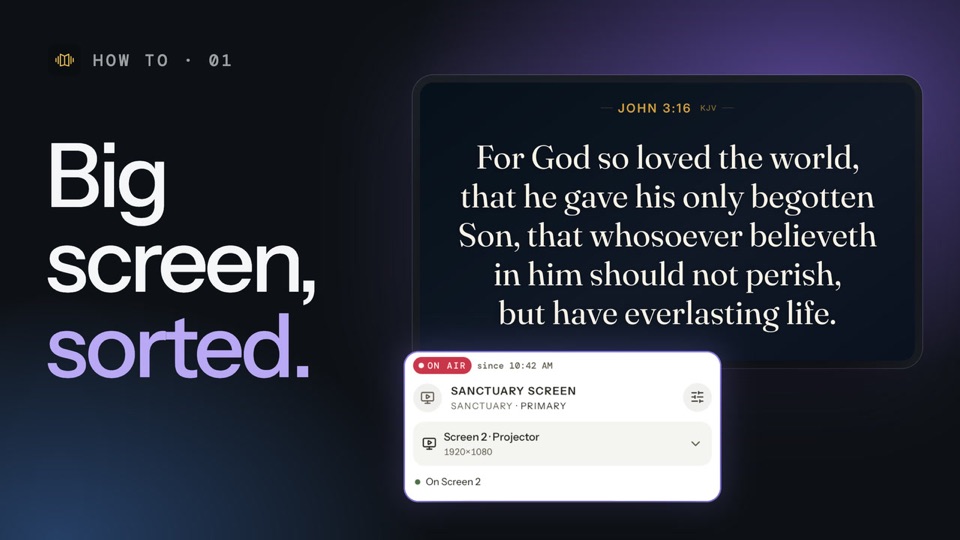
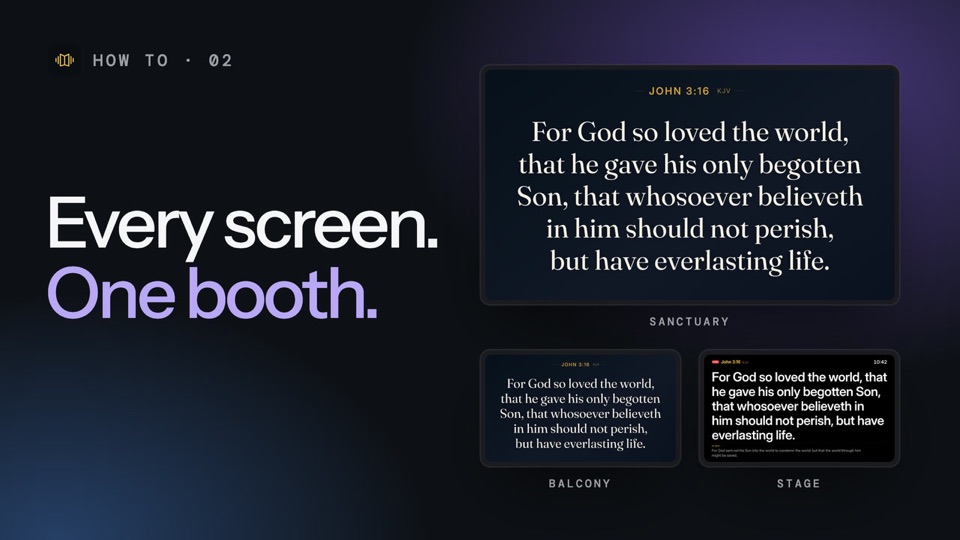
Each output in Synkeet is one destination: a projector or TV in the room, a stage display for the speaker, or a graphic for your livestream. Set them up once in Admin, Outputs and they come back to the same place every week.
A projector or TV
- Connect the projector or TV to the booth computer with HDMI or DisplayPort.
- On a Mac, open System Settings, Displays, choose Extend (not Mirror) and use the projector's native resolution, usually 1920×1080. Leave Displays have separate Spaces on (System Settings, Desktop & Dock), as it is by default.
- In Admin, Outputs, select the Sanctuary screen and choose the display under Screen. Not sure which display is which? Identify on the booth's output cards flashes a number on each one.
- On the output's card, press Open window. The output opens full screen on that display, and it does so again on every launch.
- Check the card. It says On Screen 2 with a green mark: Studio checks every 5 seconds that the window is full screen on that display.
- Keep the mouse off that screen during the service.
Screen shape and cropping
4:3 projectors and wide LED walls both work as they are: the text is sized to fit whatever screen it is on.
If the projector or TV crops the edges of the picture, turn on Keep text away from the edges.
- It adds 5% of the screen's width at the sides and 5% of its height at the top and the bottom to the room the layout already keeps. That is past what a TV left in overscan crops.
- On Lower band the band stays against the foot of the screen and the words inside it move in.
While nothing is on air
A room screen shows your logo and your idle message, if you have set them, and otherwise your theme and nothing else. Both are sized to the screen, so they read the same on a 4K wall as on a 1080p TV.
Your own logo there is included from Starter. On Free the Synkeet mark stands where your logo would, and never over a verse, a slide or the stream.
If a cable comes loose
The card says so within 5 seconds: Display disconnected, as a warning that names the display.
- Plug it back in.
- Press Open window on the card again.
- Synkeet puts the output back full screen on its display, and the card says On Screen 2 again.
If the card says Not open, Window open, but minimized or names a different screen, Open window beside that line fixes it (see Is it really there in the output management guide).
A stage display
Add an output of type Stage display and assign it to the stage monitor the same way. Then choose a layout.
| Layout | What it shows |
|---|---|
| Current + next + clock | The verse as large as it fits, the next verse, the time and the service timer. |
| Reference glance | The reference very large and the verse's first words. |
| Live | Preview | What is live beside what the operator has ready next. |
These three are always white on black, whatever theme the room is on. A stage display is read at a glance from across the platform, so it has no theme to choose, and Admin says so where the theme would be.
Show next verse is offered for Current + next + clock only, since the other two do not draw one.
The stage display's card in the booth shows the same picture as the screen: its layout, its clock, and the full-screen sermon timer when nothing is on air.
With slides
While a slide deck is on air, a stage display shows the slide on air beside the next one, the slide's speaker notes, and the sermon timer when it is running (see The stage display in the Studio booth guide).
On a TV with a browser
A TV with a web browser (or a streaming stick) can show the output's hosted link instead. Copy it from the card.
- It needs internet.
- Live | Preview shows as Current + next + clock there.
- The hosted link never shows slides, notes or the sermon timer. Those stay on the booth's own screens.
Good to know.
- A stage display set up before these layouts may be on Current + next or Large text. It can stay there.
- Admin shows the one it is on under Earlier layouts to that output alone, with Current + next + clock named as the current one.
- Those two layouts take the output's theme and have no clock or service timer.
- One set up in an early version of Studio may instead be on a room or livestream layout such as Centered verse, which is why a stage display can show the verse the way the room screen does. Admin, Outputs says so above its layouts, and choosing a stage layout there changes it.
OBS, vMix, Wirecast and other streaming software
- In Admin, Outputs, add an output of type Livestream overlay. Lower third is the recommended layout; Side panel, Full frame and Reference tag are the others.
- Under Livestream, set Background to See-through and Edge margin to 5%.
- On Side panel, Panel side puts it on the right or the left, clear of your speaker.
- Press Copy URL on the output's card (or in Admin). The link looks like taper.synkeet.com/live/your-church/Livestream%20overlay.
- Add it to your streaming software as a browser source, as in the table below.
Edge margin is 5% of the frame's width at the sides and of its height at the top and the bottom. None puts the graphic against the frame's edge.
| Software | How to add it |
|---|---|
| OBS | Sources, +, Browser. Paste the link, set width 1920 and height 1080, and leave the custom CSS as it is. Put the source above your camera. |
| vMix | Add Input, Web Browser. Paste the link and put the input on an overlay channel above your camera. |
| Wirecast | Add a Web Page source with the link and tick Transparent Background. |
The streaming computer needs internet, but it does not need Synkeet installed. Studio must be running in the booth, since it is what sends each verse.
Checking it is loaded
Once the source has the link loaded, the output's card in the booth says Loaded in 1 source, within a few seconds. Reload the booth, or open it on a second computer, with the source already loaded, and its card says so within a second or two.
That means a page reported having the link loaded, not that it is on program: Studio cannot see your switcher.
If the source is closed or the streaming computer goes offline, the card says Not seen in any source since and the time, in a little over a minute. The booth asks every 30 seconds, and waits for two checks to go unanswered.
What the viewer sees
- The overlay stays empty until a verse is on air: no logo and no idle message, whatever the output's settings.
- When you reset the output the graphic fades out the way it fades in.
- A see-through graphic sits on a solid backing, so it reads over a bright or busy picture.
Good to know.
- The booth warns on the output's card when a page is too long to read on the graphic (Too long for the output), if the output's own window is open on the booth computer. Stage a shorter range or lower Verses per screen.
- If it shows an old verse, refresh the source (in OBS, Refresh cache of current page).
A Blackmagic ATEM
An ATEM takes video, not web pages, so feed it from the booth computer's HDMI port as if it were a projector.
Full-screen scripture
Assign a Sanctuary screen to the HDMI output going to the ATEM and set that display to 1920×1080. Then cut to that input, or use it picture-in-picture.
Over the camera
Assign a Livestream overlay with Background set to See-through to that HDMI output.
- On the ATEM, use that input as an upstream luma key.
- Raise the clip until the background disappears.
Studio paints that background pure black in its own output windows, so the key is clean. The words stay, with their shadow. While nothing is on air that window is black and nothing else, so the key shows only your camera.
A Livestream overlay set to Solid
Its window is black while nothing is on air too, with no theme, idle message or logo, since a livestream shows nothing while it waits.
If you cut to that input for a welcome screen between verses, assign a Sanctuary screen to the HDMI output instead. A room screen shows your logo and idle message while it waits.
Good to know.
- Before the November 2026 update a Solid overlay showed the theme with the message and logo while waiting.
- If your stream goes through OBS or vMix after the ATEM, the browser source above gives a cleaner result than a key.
ProPresenter
On the same computer
Give ProPresenter and Synkeet different displays. Synkeet warns you if both are set to use the same screen.
Sending verses into ProPresenter
- Turn on Booth settings, Controls, ProPresenter.
- Enter the host (this computer, or one on your local network) and the port shown in ProPresenter > Settings > Network.
- Press Test connection.
It needs ProPresenter 7.9 or later and the Synkeet desktop app. On a Mac, allow Synkeet when macOS asks to find devices on your local network.
Test connection also finds the Synkeet Message in ProPresenter, or makes it. Only rely on it if the status reads Connected. Otherwise the line under ProPresenter 7 says which step failed.
Good to know.
- Typical failures: ProPresenter not answering on that port, or answering but refusing to make the Message. In the second case, add a Message named Synkeet in ProPresenter yourself.
- If ProPresenter drops out during a service, Synkeet keeps trying for a few minutes and sends the verse on air when it is back. After that, press Test connection or take the verse again.
- If it cannot reach ProPresenter, show scripture from a Synkeet output on its own screen or through a browser source instead.
ProPresenter is a trademark of Renewed Vision, LLC.
NDI
NDI® output is not available in this release, so output cards have no NDI button. Use a browser source for streaming software (vMix, OBS, Wirecast) and HDMI for a video switcher.
NDI® is a registered trademark of Vizrt NDI AB.