Studio
Outputs
Watch it · 2 videos
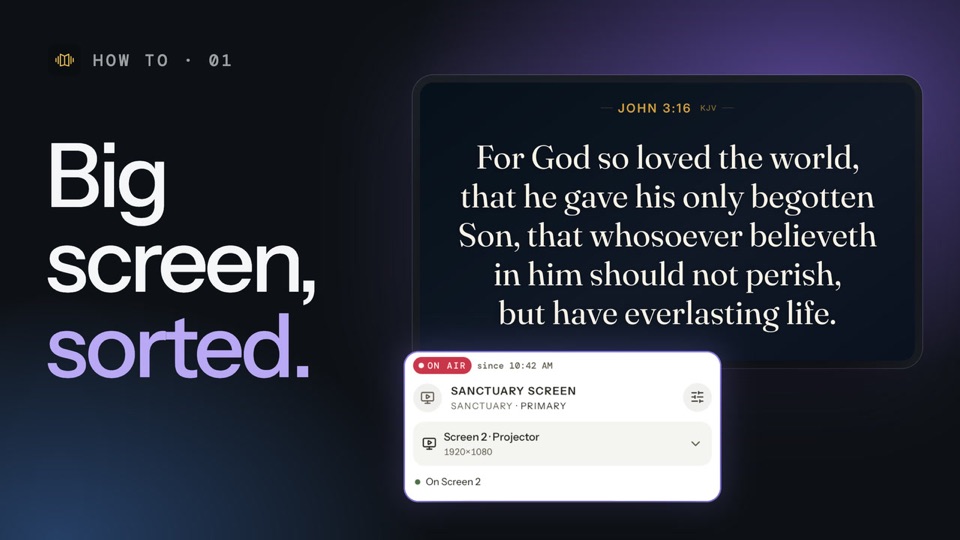
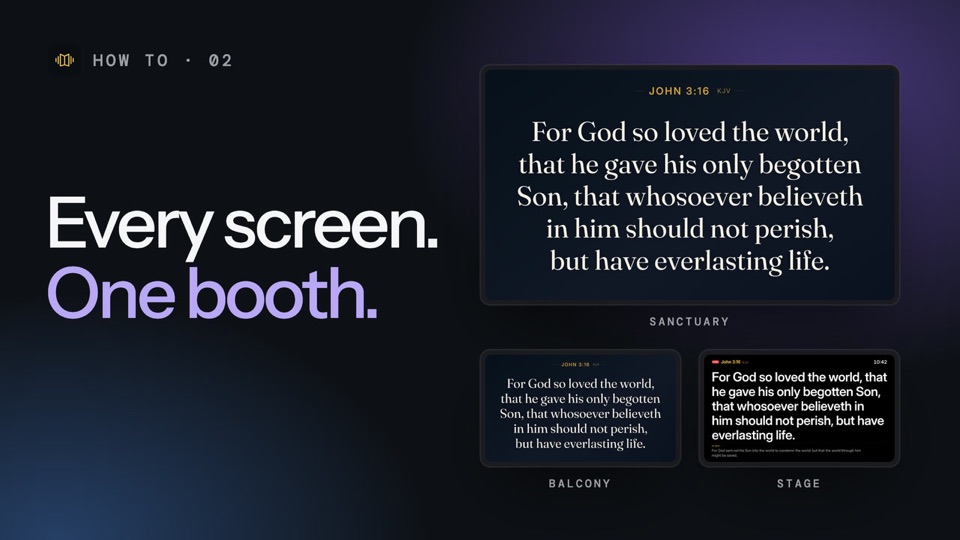
An output is one destination for scripture: a projector or screen, a stage monitor for the speaker, or a browser source for your livestream. Each has its own layout, theme and behavior. This guide is for the owner or admin who sets them up, and for operators who watch their cards in the booth.
Where
Open Admin (the Booth | Admin switch on the right of the booth's top bar, or the Synkeet mark; owners and admins only), then Outputs.
The header counts your outputs against your plan, for example "2 of 5 outputs".
| Plan | Outputs |
|---|---|
| Free | 1 |
| Starter | 2 |
| Growth | 5 |
| Network | Sized with you |
Adding one
- Press Add output.
- Give it an Output name ("Balcony screen").
- Pick an Output type: Sanctuary screen, Stage display or Livestream overlay.
- Pick a Starting layout from the layouts made for that type.
- Press Add output again to save it.
The recommended layout is marked.
| Output type | Recommended layout |
|---|---|
| Sanctuary screen | Full width |
| Livestream overlay | Lower third |
| Stage display | Current + next + clock |
A new church starts with one Sanctuary screen only, on the Full width layout. Add a Livestream overlay yourself if you stream.
Good to know.
- A church made before November 2026 started on Centered verse.
- In the November 2026 update every room screen still on Centered verse moved to Full width. The verse is larger and fills more of the screen. The reference above it is larger too, and follows Text size.
- Nothing else about those screens changed: theme, text size, idle message and logo are as they were. No other output moved.
Settings per output
Select an output in the list on the left. A setting is shown only where the output's layout and type use it.
Controls at the top
- On / Off, Make primary, Open window and Delete sit at the top.
- The primary output is the room's main screen: every take follows it, and the booth's theme picker changes it.
- Open window opens that output's window, the same as Open window on its card in the booth.
- You cannot delete your last output.
Good to know.
- Make primary is not offered on a stage display, which follows the primary and takes no theme.
- A stage display that was already made primary stays primary and says so. Open a room screen and choose Make primary to move it.
- Deleting the primary hands the role to a room screen that is on, then to a livestream, and to a stage display only when nothing else is left.
Layout
Each type of output has its own layouts, drawn in Admin as the screen draws them.
| Output type | Layouts |
|---|---|
| Room screen | Full width, Reference rail, Lower band, Sermon title + verse |
| Stage display | Current + next + clock, Reference glance, Live | Preview |
| Livestream | Lower third, Side panel, Full frame, Reference tag |
An output on a layout from before these sees that one under Earlier layouts. A line names the current layout that replaces it, for example "An earlier layout. Lower third is the current one for a livestream." The output can stay on it as long as you like.
| Earlier layout | Output | Replaced by |
|---|---|---|
| Centered verse, Full card | Room screen | Full width |
| Quote card | Room screen | Sermon title + verse |
| Full card, Quote card | Livestream | Full frame |
| Overlay card, Lower bar | Livestream | Lower third |
| Left panel | Livestream | Side panel set to the left |
| Current + next, Large text | Stage display | Current + next + clock |
Good to know.
- An output sees only its own earlier layout, never the others. An output on a current layout sees none.
- Move off an earlier layout and it stays on the page until you leave, in case you want it back.
- A stage display set up in an early version of Studio may be on a room or livestream layout such as Centered verse. Admin says so above the layouts, and it stays there until you choose a stage layout.
Panel side
Under the layouts, on the Side panel layout only. Choose Left or Right (the right until you choose): the side of the frame the panel stands against.
Appearance
- Text size: S, M, L, XL, or the booth's own size.
- Theme.
- Idle message, for when nothing is on air.
- Show church logo when idle (room screens and stage displays).
- Italic verse text.
- Background beside the verse, described next.
Background beside the verse matters in a split screen on this output. The verse keeps the theme. The picture, slide or second passage beside it sits on this background.
| Choice | What it does |
|---|---|
| Same as your theme | The start. One background under both. |
| Plain | A solid dark ground with no theme art. |
| Any other theme your plan can use | Chosen by name, held still so only the verse's background moves. |
With Plain or another theme, each side is its own panel, edge to edge, and the change of background is the divider. A change reaches a split already on the screen at once.
The waiting screen
While a room screen or a stage display waits, it shows your logo and your message, sized to the screen, and nothing else. With the logo off and no message it is the theme alone. It never shows the output's name or a line for the operator. The output's card in the booth says Idle, On air or Off.
| Plan | Room screen while waiting | Stage display while waiting |
|---|---|---|
| Starter and up | Your logo, and your message | Your logo, and your message |
| Free | The Synkeet mark, with your message under it if you wrote one | Your message alone |
On Free, the logo you uploaded and the switch are kept, so your logo shows as soon as the church is on a paid plan. Admin says so where the switch would be.
Good to know.
- A See-through output, and every livestream, shows nothing at all while it waits, in its own window and in your streaming software. A livestream has no idle message or logo to set.
- Until the November 2026 update, a livestream set to Solid showed the theme with the message and logo in its own window.
- If that window goes to a screen or a switcher and you want a welcome screen there, use a room screen output for it.
Sermon title
An output on the Sermon title + verse layout also has Sermon title under the layouts. It is shown above the verse on every screen on that layout.
Unlike the rest of this page, it is saved on this computer only, not with the church's settings. Type it on the computer that runs the service. It stays from week to week.
- It goes to this computer's screens as soon as you press Enter or pause.
- It goes to browser sources and phones once you are back in the booth.
- The sermon's current point is typed in the booth, on the output's card (see In the booth, below).
- With no output on that layout, neither field appears anywhere.
Content
- Show with the verse: the reference only, or the reference and translation.
- A licensed translation always shows its copyright line.
- A stage display also has Show next verse, on the layouts that draw one.
Screen
For screens and stage displays.
- Choose the physical display the output lives on (desktop app only). The window opens full screen there.
- Turn on Keep text away from the edges for screens that crop the picture.
- Keep-away adds 5% of the screen's width at the sides and 5% of its height at the top and the bottom to the room each layout already keeps, so the words only ever move further in.
- On Lower band the band stays against the foot of the screen and the words inside it move in.
For connecting projectors, TVs, an ATEM and streaming software, see the screens and stream guide.
Follows the main screen (room screens)
A room screen other than the primary has Follows the main screen.
| Setting | What happens |
|---|---|
| On | Every take from the booth goes to it too, as it does to the primary (an overflow room). |
| Off | Takes leave it as it is (a lobby showing announcements). Project current cue on its card sends it something when you want. |
Good to know.
- A room screen added from Studio 1.5.0 on starts with it on. One made before starts with it off, as the old One left it.
- If your church used to press All to reach a screen, turn this on once.
- It is not shown on the primary or a stage display, which always follow the primary.
- A screen beyond your plan gets no take whatever it says, so the switch is off there.
Livestream settings
For overlay outputs. The browser source itself is covered in the stream overlay guide.
- Follows the main screen: as on a room screen, but on unless you turn it off. Every take goes to the stream, including Auto takes. Turn it off to keep verses off the public stream until you send one with Project current cue on its card.
- Background: See-through or Solid. Not offered on Full frame, which is a solid picture either way.
- Maximum width: 60%, 80% or Full width. It narrows the graphic where it stands, so a lower third and a full frame stay centered and a side panel stays against its side.
- Edge margin: None, 5%, 10% or 15%.
The edge margin is the room between the graphic and the frame, as a share of the frame's width at the sides and of its height at the top and the foot. The line under it says so. None is none: the graphic reaches the frame's edge. An overlay you have never set draws 5%, and says so.
Good to know.
- Maximum width is not offered on Reference tag, which is as wide as its reference, or on the earlier Left panel.
Which settings are shown
- On Reference tag, which shows the reference alone, there is no Italic verse text, Show with the verse or Maximum width.
- The stage layouts (Current + next + clock, Reference glance, Live | Preview) are always high contrast, white on black. They have no Theme and no Background beside the verse, and the page says so where the theme would be.
- Show next verse is there for Current + next + clock (and the earlier Current + next and Large text). It is not there for Reference glance or Live | Preview, which do not draw a next verse.
- Changing the layout changes which settings are shown. What a hidden one was set to is kept.
Projection defaults and branding
Below the outputs, Going live holds two settings: The booth starts on and Verses per screen (1 to 8). Church logo holds your logo.
The booth starts on
| Choice | What it does |
|---|---|
| Manual: wait for the operator | The start. Nothing goes up until the operator takes it. |
| Auto: go live by itself | The booth puts detected verses up by itself. |
This is the mode every booth of your church opens on when no service is running. Operators can still switch in the booth for as long as it is open, and that never changes this setting. Changing it does not move a booth that is already open; it applies the next time one opens.
Good to know.
- A booth reloaded or reopened while a service is running keeps the mode it had in that service.
- A second booth, opened while another is open, always starts on Manual (see the Studio booth guide, Manual and Auto).
- Studio 1.4.0 and earlier save this choice but do not read it. The booth opens on Manual, or, the first time on a computer, on the answer given in first-run setup.
Church logo
Church logo holds the church logo (PNG, JPEG or WebP, up to 2 MB). It is shown while a screen is idle, on every output that has it switched on.
Showing it there is included from Starter. A Free church can still add one, and it is kept for when the church upgrades.
In the booth
The output card
Each output card in the right rail opens with a picture of that screen, drawn the way the screen itself draws it. That can be the verse on the layout the output is on, the idle screen and its logo, a slide, a split, a stage display's clock, or its full-screen sermon timer when nothing is on air.
- A stage display's card is black with the clock, as its screen is. A room screen's card has its theme.
- Change an output's layout in Admin and its card changes with the screen, without a new take.
- The picture holds still: a theme that moves on the real screen does not move here. A clock or timer in it ticks once a second.
- The gear on a card opens its settings in Admin.
Under the picture the card shows, in order:
- Its status: On air since 10:42, Idle or Off.
- Its destination: the screen it is on, or Browser source with Copy URL.
- One line saying whether it is really getting there (see Is it really there, below).
- Buttons: Project current cue, copy the browser-source URL, Reset to idle and Open window.
Project current cue sends that output what is on air now, not Preview, and only of a kind that screen shows. A screen set to Slides gets no verse, so the button is off while a verse is up. Identify flashes a number on every connected display.
Shows
A card also has Shows, which is what that screen takes from the booth. It is kept on this computer, for your church.
| Choice | What the screen takes |
|---|---|
| Verses | Verses only. |
| Slides | Slides only. |
| Both | Verses and slides. |
A Livestream overlay takes verses only, and says so.
Follows the main screen on a card
The card of a room screen or livestream other than the primary has Follows the main screen too. It is the same setting as in Admin, saved for the church. A line under it says what a take does there.
| Output | On | Off |
|---|---|---|
| Room screen | Takes from the booth go here too. | Takes leave this screen as it is. Send it something with Project current cue. |
| Livestream | Takes from the booth go to the stream too, including Auto takes. | Takes leave the stream as it is. Send it a verse with Project current cue. |
Point field
A card for an output on the Sermon title + verse layout has a Point field for the sermon's current point. Type it as the preacher moves on, and it goes to the screens when you press Enter or pause.
Every card on that layout shares the one point. It is cleared when the service ends.
The shape of the picture
The picture is in the shape of that output's screen when Studio knows it.
- Desktop app: the display the output is assigned to, as the computer reports it. A 4:3 projector's card shows a 4:3 picture, and a screen turned on its side shows a tall one.
- Browser: the size of the output's own window, once that window has been opened. With two windows open for the same output, the card takes the shape of the first one until it closes.
- Livestream overlay: drawn 16:9, the shape of a stream.
- No display assigned, or before the window has said: 16:9.
The card keeps its size either way, with the picture in the middle of it.
Seeing it large
Click a card's picture (or press Enter on it) to see it large: the same picture, the output's name and its status line. It follows what goes on and off that screen while it is open.
Close it with Escape, the X or a click outside it. While it is open, Enter and the booth's other keys do nothing to what is on air.
The Differs mark
A card shows a small Differs mark beside On air or Idle when that output is showing something other than the main screen because of a choice you made.
- Its Shows setting.
- A take that left it as it was (a room screen or livestream that does not follow the main screen; the mark says so when the main screen's take is why).
- Project current cue to it alone.
- Reset to idle on one screen.
Point at the mark to see how, for example Showing slides only, Showing a different verse or Clear while the room shows a verse, and what the main screen has.
Good to know.
- The same verse drawn on another layout, theme or text size is not marked.
- Neither is what an output's kind does on its own: a stage display or a see-through screen never shows a split, and a Livestream overlay keeps its verse while the main screen shows a slide.
- The same holds when the main screen is itself a stage display, a see-through screen or a Livestream overlay.
Is it really there
Under its destination, each output card has one line that says whether the output is really getting where it is going. It says only what Studio knows. Where Studio cannot know, there is no line.
The mark beside the line
| Mark | Meaning |
|---|---|
| Green | Everything the line says is confirmed good news. |
| Grey | Something on the line is not good news, even beside good news. Window closed · link loaded in 1 source is grey. |
| Amber | A display that was assigned is no longer connected, and nothing else. |
The card's own Open window button always agrees with the line. It is lit while the line says the window is open, and not once the line says it is closed or not seen.
A screen or a stage display, in the desktop app
Studio asks the computer every 5 seconds where that output's window is.
| Line | What it means |
|---|---|
| On Screen 2, green mark | The window is full screen on that display. Green means exactly that, and nothing less. |
| On Screen 2, not full screen | It is there as a window, with the desktop showing around it. |
| On Screen 1, not Screen 2 | It is on a different display from the one assigned. Open window, beside the line, moves it. |
| Not open, Window open, but minimized or Window open, not on a display | Nobody can see it. Open window opens it or brings it back. |
| Opening window | You have just opened it and the computer has not listed it yet. Studio looks again within 3 seconds, and the line then says where it is. |
| assigned display unclear, after what the line says about the window | See below. |
| Display disconnected, in amber | See below. |
Assigned display unclear. A display that could be the one assigned is connected, but Studio cannot match it for certain. A display with no name came back at a different size, or two connected displays share a name. Choose its screen again on the card. Studio does not call this disconnected, and it never warns.
Display disconnected. The display this output is assigned to is no longer connected to the computer, no connected display could be it, and the row above names it. While a service or a rehearsal is running, or that output is on air, it is a warning on the card in place of the line. Plug the display back in and press Open window, or choose another screen. This is the only state that warns.
An output shown through its link
This covers a Livestream overlay in OBS or vMix, and any output's link on a TV.
Your booth asks which sources have its links loaded, every 30 seconds while one does, and each page answers. A page also says so once as it loads. A page that no booth asks sends nothing.
When you open the booth, reload it, or open it on a second computer, it asks at once. Every loaded page answers within a second or two, even if it answered another booth a moment before. So the card says Loaded in 1 source within a second or two of the booth connecting, not half a minute later.
| Line | What it means |
|---|---|
| Loaded in 1 source, green mark | A page reported having the link loaded, in answer to the booth. |
| Not seen in any source since 10:42 | The source that had it loaded did not answer the booth's last two checks, a little over a minute. It was closed, switched off, or offline. |
| Waiting to hear from a source | Nothing has answered yet. |
| No line | Studio is not connected to hear them (it is offline, or in Rehearse). |
Good to know.
- Loaded is all Studio can know. It cannot see which program has the page or your switcher, so Loaded in 1 source does not say the scene is on program.
- In OBS, a source with Shutdown source when not visible ticked is loaded only while its scene shows, so the line follows your scenes.
- A source says it is waiting as it loads the link, and answers each time the booth asks. If yours has the link loaded and the card still says waiting, refresh the source: one left open from before sources reported says nothing.
- Two booths open for one church share the asking. One asks for both, and if it closes the other takes over within about 36 seconds, before any source is dropped.
- A room screen shown through its link on another computer says Link loaded in 1 source in place of Not open.
In a browser
Studio cannot see displays in a browser. From what the output's own window reports, the line says one of these.
- Window open
- Window open, but hidden (a background tab, or a minimized or covered window)
- Window closed
- Window not seen since 10:42
It says nothing for a window it has not heard from.
Studio cannot see ProPresenter's own screen, so the card says nothing about it.
When your plan changes
Nothing is deleted. Outputs beyond the new plan's count are switched off, keeping the primary, and the booth marks them "Beyond your plan's output limit". Upgrade, or disable another and enable the one you want.
The booth re-reads the plan every five minutes and whenever you come back to its window, so the change reaches the screens without a restart.
Good to know.
- The same rule switches off campuses past a plan's cap, and refuses a team member past the seat count.
- Licensed translations are not capped on any paid plan, so a move between paid plans leaves them alone.
- On Free every licensed translation is switched off, so a Free church needs a public-domain default such as KJV.
- A church that moves to Free keeps its logo and its Show church logo when idle switches, but an idle room screen shows the Synkeet mark in the logo's place. Back on a paid plan the logo shows again.