Studio
Livestream overlay
Watch it
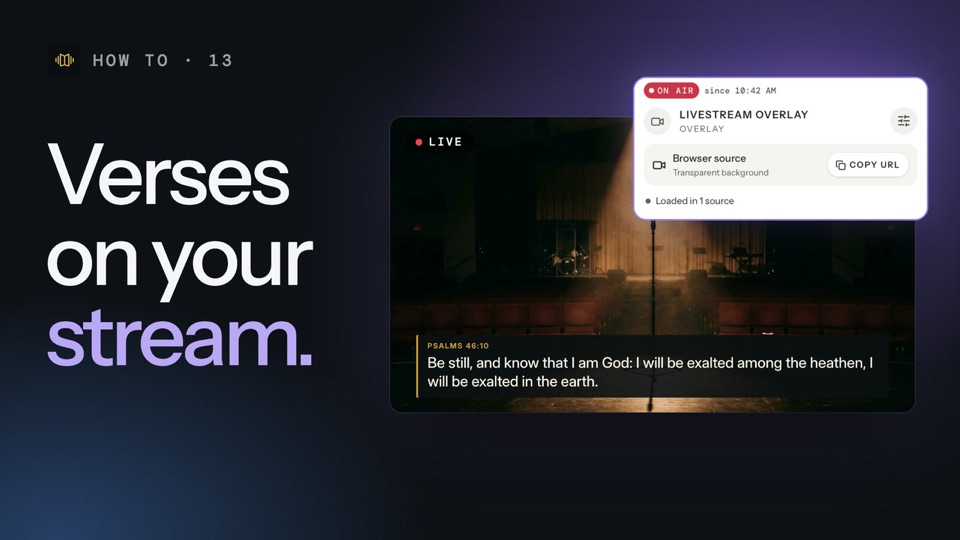
Put the verse over your livestream video as a transparent layer your streaming software composites. No slides, no green screen, no second operator.
Set it up
- In Admin, Outputs, press Add output and choose the type Livestream overlay (a new church does not have one). Lower third is the recommended starting layout.
- In the output's Livestream section, set Background to See-through.
- Choose an Edge margin and a Maximum width (see below).
- Copy the link: Copy URL next to OBS browser source URL in Admin, or on the output's card in the booth (Browser source, Copy URL).
The link is hosted by Synkeet. The streaming computer needs internet but not Synkeet, and Studio must be running in the booth.
| Setting | Choices | Notes |
|---|---|---|
| Edge margin | None, 5%, 10%, 15% | 5% suits most streams. Use more if your platform crops the edges. |
| Maximum width | 60%, 80%, Full width | Narrows the graphic where it stands: a lower third stays centered, a side panel stays against its side. |
The margin is a share of the frame's width at the sides and of its height at the top and the bottom. None puts the graphic against the frame's edge.
Good to know.
- Background is not offered on Full frame, which is always solid.
- Maximum width is not offered on Reference tag.
OBS Studio
- In the scene with your camera: Sources, +, Browser. Name it, OK.
- Paste the link into URL.
- Set width 1920, height 1080 (or your canvas size).
- Tick Shutdown source when not visible. OK.
- Drag the source above the camera.
Leave the source's custom CSS alone. The page is transparent by itself.
vMix
- Add Input, More, Web Browser.
- Paste the link, set width and height to your output, OK.
- Assign the input to an overlay channel (1 to 4) above your camera.
- Switch that overlay on during the service.
Layouts
The output's layout is set in Admin.
| Layout | What it is |
|---|---|
| Lower third | A bar along the bottom, the recommended one: two lines, and a third for a verse that needs it. |
| Side panel | A column beside the camera, on the right or, with Panel side, the left. |
| Full frame | A solid full-screen card, never see-through. |
| Reference tag | The reference alone, with its translation. It follows Text size. |
Panel side sits under the layouts while Side panel is chosen.
Good to know.
- An overlay already on one of the earlier layouts (Full card, Quote card, Overlay card, Lower bar, Left panel) sees that one under Earlier layouts, with the current layout that replaces it named. It can stay on it.
- Other overlays are not shown the earlier layouts.
What the viewer sees
The overlay is blank until you take a verse. It updates within a second of each take, and fades out when you reset the output, as it fades in. It follows the theme set on the output.
With a see-through background the graphic sits over the video on a solid backing of its own, so it reads over a bright or busy picture. The earlier Full card, Left panel and Quote card have one too, where they were a faint tint or bare words.
When a take reaches the stream
A take reaches the livestream when all of these hold.
- The overlay is on and in your plan.
- Its Follows the main screen is on, which it is unless you turn it off.
- The primary screen is on, in your plan and takes verses.
The output's own window
The output's own window on the booth computer shows nothing at all while idle, with Background on See-through or Solid.
Before the November 2026 update a Solid one showed the theme with the idle message and logo in that window. If you send that window to a screen or a switcher and want a welcome screen there, use a Sanctuary screen output for it.
A page too long to read
When a page is too long to read on a graphic (eight verses on a lower third or a side panel, say) it is still shown whole, smaller. The booth says Too long for the output on its card, if the output's own window is open on the booth computer. Stage a shorter range or lower Verses per screen.
The booth card
The output's card in the booth says Loaded in 1 source while a page with the link loaded keeps answering the booth. With Shutdown source when not visible ticked in OBS, that is only while its scene shows.
If it is blank or stale, see the browser source guide.