Studio
Signing in
Watch it
How to sign in to Studio, create or join a church, sign out, and what happens when a sign-in ends mid-service. For everyone who uses the booth.
Studio opens on one dark sign-in sheet with the Synkeet Studio mark and a verse turning slowly behind it, whatever theme the booth is kept in.
Ways in
| Way | How it works |
|---|---|
| Email and password | Enter both and press Sign in. |
| A sign-in code | Email me a sign-in code instead sends an 8-digit code. Type it on the next screen. |
| Google or Apple | Use the two buttons above the email field. |
Password
Forgot password? beside the password label emails a reset link that works once.
Sign-in code
- Type the code on the next screen and ignore any link in that email.
- Send a new code if it has expired.
- Use a password instead goes back.
Google or Apple
In the desktop app, the buttons open your web browser. Sign in there, and Studio comes forward signed in.
The browser tab then shows "Finish in Synkeet Studio" and can be closed. If the browser did not open Studio, press Open Synkeet Studio on that page.
Good to know.
- If you close the browser without finishing, the buttons work again a few seconds after you come back to Studio.
A new account
Create one asks for first name, last name, email and a password of at least 8 characters. It then sends a confirmation link.
- Open the link in the email.
- Come back to Studio.
- Press I've confirmed. Sign in.
If the email is not in your inbox, look in Spam or Junk for "Confirm your Synkeet account". You can also press Email me a sign-in code instead.
Your church
After the first sign-in, Studio opens on whichever of these fits you.
| You are | What you see |
|---|---|
| Invited | You're invited to your church's name, with Join |
| Starting a church | Create your church |
| Joining with a code | Joining a team? Enter an invite code |
If you were invited
If you came from the button in an invite email, or an invite was sent to the address you signed in with, you see You're invited to your church's name. Press Join and you are in. There is nothing to type.
This works even if you confirmed your account in another tab or signed up with Google, as long as it is the address the invite was sent to. An invite cannot be used from another account.
Create a new church instead is there if you meant to start your own.
Create your church
- Name the church.
- Check the Country. It is filled in from your computer's language settings.
- Press Create church.
The church is made with you as its owner. If Studio can't reach Synkeet, it says so and makes nothing. Press Create church again once you're online, and you won't end up with two.
Naming rules:
- Use your church's full name, in any language.
- It needs at least three characters and two letters, so a single letter or a row of dots is refused.
- Two churches may share a name. If yours has several branches, adding the city or campus (for example Grace Fellowship, Austin North) helps your team tell them apart.
- One account can create up to 10 churches a day.
The 30-day trial
The first church you create starts a 30-day Growth trial. A later one starts on Free, even if you handed the first to someone else.
A church also starts on Free in these cases:
- It is made from another account that uses the same inbox, such as name+church@ for name@.
- It is made from an account on the same church email domain, such as youth@ after office@ at your church's own domain.
- It is a second church made from the same copy of Studio within 30 days.
Addresses at Gmail, Outlook, Yahoo, iCloud and other shared providers are compared by inbox only, never by domain.
If a church starts on Free and you expected the trial, write to hello@synkeet.com.
Joining with an invite code
Joining a team? Enter an invite code opens the code form. The code is eight characters such as ABCD-EFGH, from the invite email your church admin sent.
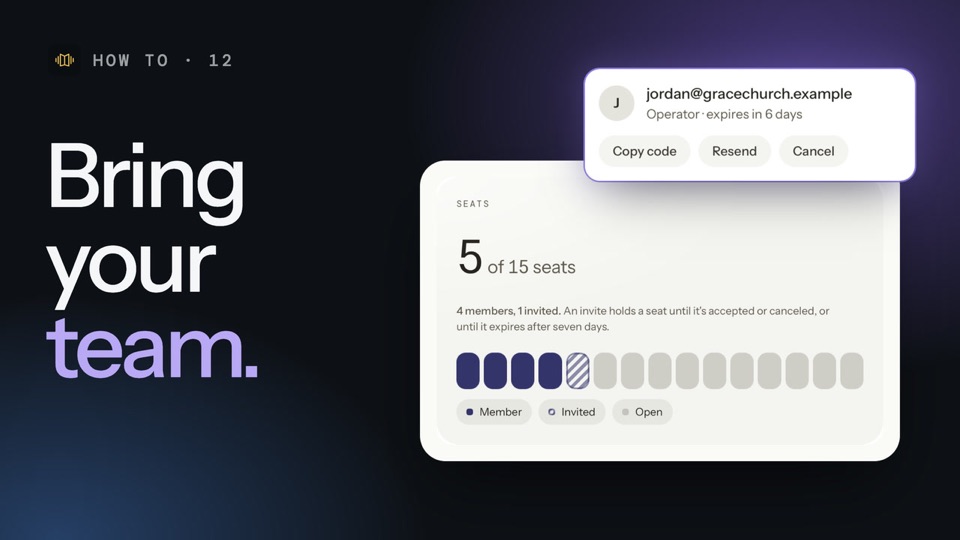
Your church admin sends invites from Admin, Team. An invite lasts seven days. After that it has expired, so ask your admin for a new one.
Signing out
Your account menu, top right of the booth, has Your profile and Sign out. The booth remembers you between launches until you sign out.
Sign out
Sign out signs out this computer only.
- If your church shares one account between two booth computers, or the same account is signed in to Taper on a phone, the others stay signed in.
- In a browser, Studio's other tabs in that browser are signed out with it, because they share one sign-in.
- Signing out needs a connection. If Studio cannot reach Synkeet, it says "Could not sign out. Check your connection and try again." and you stay signed in. Press Sign out again once you are online.
Sign out of all devices
Sign out of all devices is in Your profile, under Signed-in devices. It is kept away from the menu's Sign out so it is not pressed by mistake.
It asks first, then signs the account out everywhere it is signed in, including any booth running a service. This computer is signed out at once, the others within an hour.
A booth signed out this way keeps what is on its screens and asks to be signed in again (see the next section).
Use it when a computer or phone is lost, or when someone who should no longer have the account was signed in somewhere.
Good to know.
- If Studio cannot reach Synkeet, it says so and nobody is signed out. Press it again once you are online.
- If a service is running on this computer when you press it, Studio asks about the service in the same question (see Signing out while a service is running).
- Changing your password with a reset link does the same to the other devices. The page says so before you save: every other device signed in to the account is signed out within an hour, and the one you changed it on stays signed in.
- Studio 1.4.0 and earlier, and copies of the Taper app that have not been updated since, still sign the account out everywhere when you press Sign out. Update them so that it means this device only.
If Studio is signed out during a service
A sign-in can end without anyone at the booth pressing Sign out. Common causes:
- Someone pressed Sign out of all devices on another computer or in Taper.
- The account's password was changed.
- An older version of Studio or Taper signed out somewhere.
- Synkeet could not renew the sign-in.
Studio does not go to the sign-in screen when that happens. The booth stays as it is, everything on your screens stays up, and a notice in the bottom right corner says Studio was signed out.
A short internet outage is not this. Studio keeps your sign-in through it and renews it when the connection returns, with no notice.
The notice
| Button | What it does |
|---|---|
| Sign in again | Opens the sign-in over the booth. Sign in the usual way and Studio carries on where it was, with no restart. The service keeps running behind the sign-in the whole time. |
| Back to the booth | Closes the sign-in without signing in. The notice returns. |
| Later | Puts the notice away for ten minutes, then it comes back. It does not go away for good until you sign in again or sign out. |
Sign in with the account the booth was using. If you sign in with a different one (the wrong pick in Google's account list, say), Studio does not switch to it in the middle of a service. The sign-in says Sign in as with the booth's email, and the booth stays as it is. To hand the booth to another account, press Sign out first, then sign in.
While you are signed out
- Your screens and outputs keep what you put on them, and you can still put verses up.
- Nothing new is saved.
- Phones may stop following, and a licensed translation may not load.
- Listening does not start again if it stops.
- The booth cannot see your church's other booths. It shows Solo booth, and the top bar lists no other operators.
- A phone that opens mid-service may show an earlier verse until you put up the next one.
When you sign in again, all of this is put right with nothing to restart. Verses you put up meanwhile are added to the service record once you are back in, each at the time you put it up.
Ending the service while signed out
You can still end the service. Press the Service pill and End service as usual. Phones following along move to the recap, and the wrap-up says "The service has ended. Its record will be saved when you sign in again."
When you sign in again on this computer with the booth's account, the service is saved as ended at the moment you pressed End service. That holds however much later you sign in (the next morning included). The verses you put up before it are saved too, and the wrap-up shows the recap.
Good to know.
- Studio does not start that service again in between, even if you close Studio and open it again.
- If someone else signs in on this computer first, the end waits for the account that pressed it.
- Until it is saved, another booth of your church that is signed in still shows the service as running, because its record is still open.
- A phone that opens your church for the first time in the next three hours may show the last verse.
Signing out while a service is running
If you press Sign out while the Service pill is up, Studio asks first: Sign out with a service running?
| Choice | What it does |
|---|---|
| End the service and sign out | Same as pressing End service first. Phones move to the service recap, this computer's screens are cleared, the service record is closed, then Studio signs out. |
| Sign out and leave the service running | For when another booth is carrying on. Screens and phones stay as they are, and the service stays open until a booth ends it. |
| Stay signed in | Changes nothing, and so does Escape. |
End the service and sign out
Studio waits a moment first, a few seconds at most. It is waiting for the pictures sent to your livestream for split screens to be deleted, which needs the sign-in.
If Studio had already been signed out (see above), phones are still told and the screens are still cleared. The service record is saved the next time this account signs in on this computer.
Leave the service running
The service stays open until a booth ends it: the other booth, or this one after someone signs in again. A booth that opens within eight hours of the service's start picks it up, with its clock running.
In Admin
In Admin the question offers Sign out and leave the service running and Stay signed in only, because a service is ended from the booth.
If Admin could not check whether a service is running (Studio is signed out, or cannot reach Synkeet), it asks under A service may be running, with Sign out anyway and Stay signed in.
When the booth could not check
The booth asks the same when it could not check. This happens in these cases:
- Studio was signed out and you then went to Admin and back, or restarted Studio. The booth cannot read the service until you sign in again, so it shows no Service pill even if a service is still running.
- Studio cannot reach Synkeet.
- The booth is still opening, for a moment.
The booth cannot end a service it cannot see. It offers Sign out anyway and Stay signed in, and says how to end one: sign in again (or stay signed in until the Service pill is back), then press End service. Once it has checked, it asks as above.
With no service running, and in a rehearsal, Sign out signs out at once.
Sign out of all devices with a service running
Sign out of all devices asks the same way, once. With the Service pill up, pressing it in Your profile opens Sign out of all devices with a service running? in place of its usual question.
It says the account is signed out everywhere it is signed in (this computer now, other devices within an hour), and offers:
| Choice | What it does |
|---|---|
| End the service and sign out of all devices | The service is ended as above, then every device is signed out. |
| Sign out of all devices and leave the service running | Screens and phones stay as they are, and the service stays open until a booth ends it. Another booth signed in with this account is signed out too: it keeps its screens up and asks to be signed in again. |
| Stay signed in | Changes nothing, and so does Escape. Your profile stays open. |
Good to know.
- In Admin it offers the last two choices only, and Sign out of all devices anyway when it could not check.
- A booth that could not check offers Sign out of all devices anyway and Stay signed in.
- With no service running, and in a rehearsal, Sign out of all devices asks its usual question.
If the sign-out cannot reach Synkeet
If you chose to end the service and the sign-out then cannot reach Synkeet, the service has still ended and its screens are cleared. But nobody is signed out, and Studio says so:
- For Sign out: "Could not sign out. Check your connection and try again."
- For Sign out of all devices, in your profile: "Could not sign out of all devices. Check your connection and try again."
Press it again once you are online. With the service over, it no longer asks about one.
A computer more than one church uses
Two churches can use the same computer, one after the other: sign out, and the other signs in. Each church finds its own copy of these, and never the other church's:
- Setlist, service plans and templates.
- Sermon title, point and timer.
- Its choice of which screens take verses or slides.
- What Steward noticed in its services.
All of it stays on the computer when you sign out, so it is there the next time your church signs in, on any of your church's accounts.
If you belong to two churches, Switch church in your account menu works the same way: each church opens with its own.
What changes when another church signs in
- The room's screens go to idle, so the last church's verse is not left up.
- Planning Center is disconnected. Connect it again under Booth settings, Service plans the next time your own church is there.
- A licensed translation reconnects on its own.
Settings that belong to each church
How the booth detects and takes verses is each church's own. In Booth settings, Session, that is everything under Detection:
- Follow the sermon
- When I put a verse in Preview
- Save every detected verse to the Setlist
- Follow spoken translation
- How careful AUTO is
- Auto take countdown
- Auto take recited verses
- Share issue reports
Under Appearance, Stage, it is Text size, Typeface and Hide reference, which decide how a verse looks on your screens.
A church that has never set one of these starts on Studio's default for it, whatever the last church chose. So one church setting AUTO to take quoted verses, or turning its failure log off, changes nothing for another church on the same computer.
Settings that belong to the computer
Microphone and input settings, MIDI, shortcuts, NDI, ProPresenter, which display each output is on, the booth's theme, accent, layout and pane sizes, Sound feedback and Auto-clear detections belong to the computer, and stay as they are whoever signs in.
After updating from Studio 1.4.0 or earlier
Studio 1.4.0 and earlier kept one Setlist, one set of service plans and templates, one sermon title, point and timer, one choice of screens and one set of the detection and output display settings above for the whole computer. The first time Studio opens after the update, it settles once whose they are.
| Situation | What happens |
|---|---|
| One church has used the computer | They are that church's, and nothing changes for it. |
| More than one church has used it | They go to the church that had Studio open on the computer last, because that is the list it was last working from. |
| Studio cannot tell which church had it open last | They are removed, and each church builds its own. |
More than one church. This is the usual case: a church you made to try Studio before you joined your own counts as a second church, and your own church keeps what it prepared.
If two separate churches really did share the computer, the church that had it open last keeps the shared list, including anything the other church added to it. The other church starts with an empty Setlist and no plans.
If the other church is the first to sign in, it sees none of it. The list waits on the computer for the church it is for. If that church has not signed in there after 90 days, it is removed the next time another church does.
Check two settings. A church that those settings do not go to starts on Studio's defaults, never on another church's choices. Check these the first time you open Booth settings after the update, because their defaults may not be what your booth had:
- Auto take countdown starts on Instant. If your booth had a countdown, choose it again before you use AUTO.
- Share issue reports starts On. If your church had turned it off, turn it off again.
Good to know.
- A Planning Center connection made before the update is kept only on a computer one church has used. Otherwise connect it again.
- What Steward noticed before the update is kept only there too.