Taper
Following your church's service
Watch it
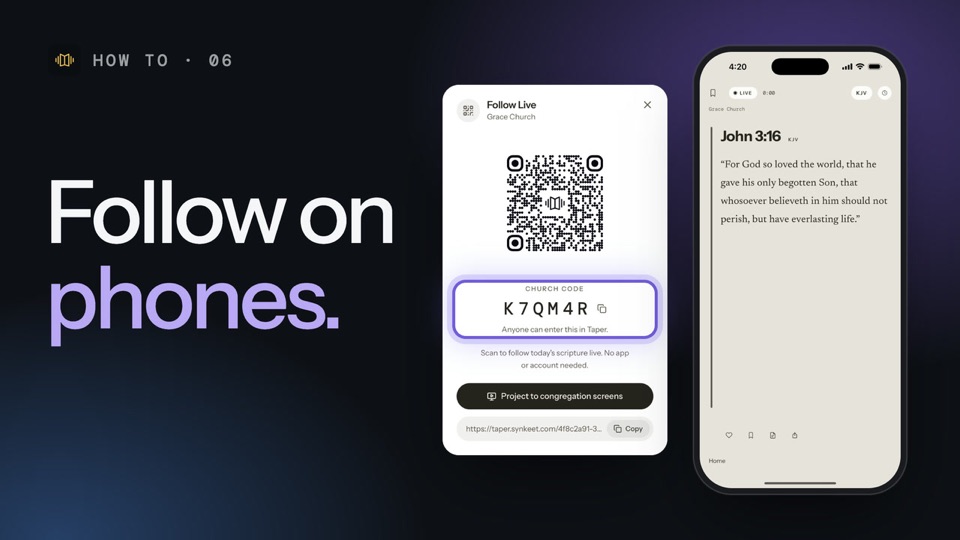
When your church runs Synkeet Studio, each verse it puts on its screens appears on your phone as it goes up. Following needs no account and nothing to install: Taper works in your phone's browser at taper.synkeet.com, and in the Taper app.
Getting in
- Scan the QR code your church shows on its screens with your phone's camera. It opens your church's live screen in the browser.
- Type your church's code. A whole church code opens your church's live screen on its own, with nothing to press.
- In the Taper app, the Scan QR tab on the Join screen reads the church's QR code with the camera.
Where to type the code
In Taper, open Join, or the church row on the home screen. The row reads Connect your church, or Visiting another church? once a church is on your device. The same field takes a gathering code, so there is only one box to find.
If the camera is off
If the Taper app says camera access is off, tap Open Settings, turn on the camera for Synkeet, and come back. The scanner starts on its own.
My church
After your first visit, the home screen keeps a card under My church that opens your church's live screen in one tap. While a service is on air the card says so: "The service is on air. Pick up where the room is."
Before the service starts
Your church's name sits at the top of the screen.
- Until the first verse goes up it reads "You're on the live screen. Verses appear when the service begins."
- Between passages it reads "Between passages. The next verse appears here as it is projected."
There is nothing to press. Leave the screen open and the next verse arrives on its own.
The screen stays on while the service is live or between passages, so your phone does not lock in the middle of the sermon. It lets go after two hours with no new passage and no touch, so a phone left on a pew does not run its battery down.
During the service
- The verse shows with its reference and translation. LIVE at the top means it is on the church's screens right now.
- Amen. The heart under the verse says amen to it. The number beside it counts the whole room's amens. Tap it again to take yours back.
- Save and notes. The bookmark saves the verse to your library, in the translation you are reading it in. The note button adds a private note to it.
- Both ask you to sign in first, because your library lives in your account (see Your Taper account).
- Share. The share button sends the verse through your phone's share sheet, or copies it. A licensed translation is shared with its publisher's line.
- In the Taper app you can also make a picture of the verse and Save to Photos.
- Bible, on the web, opens the passage on YouVersion, where you can read it in another translation.
- Leave, at the foot of the screen (Home in newer versions), takes you back to Taper's home screen. The service carries on, and the card under My church brings you back.
Passages so far
- On the web, once there are two or more, the clock button at the top lists every passage of this service. On a laptop the list sits beside the verse.
- Tap one to read it again. The top then says EARLIER, and Return to live brings you back to what is on the screens.
- In the Taper app, the list button opens Passages this service, and Save verse there keeps one in your library.
Translation
You can read each verse in a translation of your own, whatever is on the screens. The button is beside the reference on the web, and at the top in the Taper app. It opens Your Bible.
- Open Your Bible.
- Pick KJV, WEB or BSB. Each verse on air appears in it.
To go back, pick Same as the screens.
Good to know.
- A verse that can't be shown in your translation shows as your church's screens show it.
- Until you pick one, verses show as your church's screens show them.
- On the web, the choice is kept in this browser. In the Taper app, it is kept on your phone.
- If you picked a translation in an earlier version of the Taper app that isn't offered now, verses show as your church's screens show them until you pick again.
- The choice is separate from Default translation on the You page, which is the translation a gathering you host opens in.
When the service ends
When the booth ends the service, your phone says so.
- On the web the screen reads "The service has ended", with See what was read to open the recap.
- In the Taper app the recap opens on its own.
The Taper app also opens the recap after 20 minutes with nothing on the screens, during a long prayer for example. Back returns you to the live screen.
The recap
Once the service is over, the live screen offers its recap (See what was read on the web). The recap shows:
- The date and how long the service ran.
- Every passage in the order it went up (Scripture journey).
- How the room answered with amens.
- The sermon summary, if your church published one.
Share this recap sends the list of passages as text. A recap stays readable for 30 days after the service.
In the Taper app
Once you are signed in, you can save, star or add a note to each passage in the recap, or Save all. Starring a passage saves it too, and your stars follow your account to the web.
Good to know.
- If something in a summary is wrong or offensive, tap Report this summary under it to tell us.
- You can read and change the note before you press Send.
The weekly recap email
Signing in from your church's live screen makes you one of the church's followers. The Weekly recap switch on the You page controls a Monday email with the scriptures from the churches you follow. Every one of those emails also has an unsubscribe link.
History
Taper's History lists the gatherings you have joined, not your church's services. Your church is the card under My church on the home screen, and its latest service's recap is one tap away on its live screen.